An example of using a pre-trained Model for classification
In this section, we have illustrated how to use a pretrain model, saved by the LIBTwinSVM. Note that, this step requires a pre-trained model file saved in classifying step as a .joblib file. If you don’t have the previously said file, please refer to [classication usage example](https://libtwinsvm.readthedocs.io/en/latest/examples/GUI/classify.html#).
Step 1: Data Import
Please note that, to use a model on test samples, the test data must have the same features as the training data. Below is a step-by-step procudure on how to load your data for reusing a pre-trained model.
- By default, the application starts on the Data tab.

- By clicking on the Open button in the Import box, the file dialog will be opened and you can then choose the dataset you want to test with a pre-trained model.

- You may need to change the column separator if it is other than comma.
- In Read box in Data tab, you may want to Normalize and/or Shuffle the data.
- Then you must click on Load Button, and the data will be loaded and also displayed in the feature box.

Step 2: Using a Pre-trained Model
Up to now, the dataset should be loaded. Follow the below instructions for evaluating a pre-trained model on test samples.
- First, switch the tabs to Model tab.
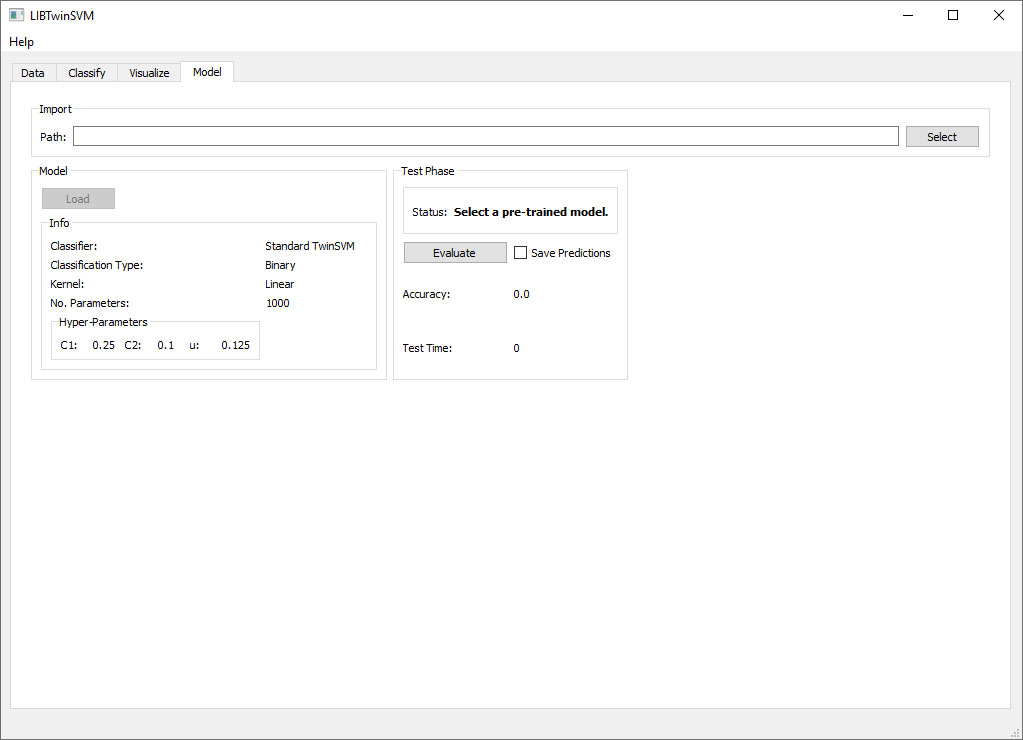
- Click on the Select button in the Import box to select your pre-trained model file. You can see a pre-trained model file by LIBTwinSVM in the figure below.
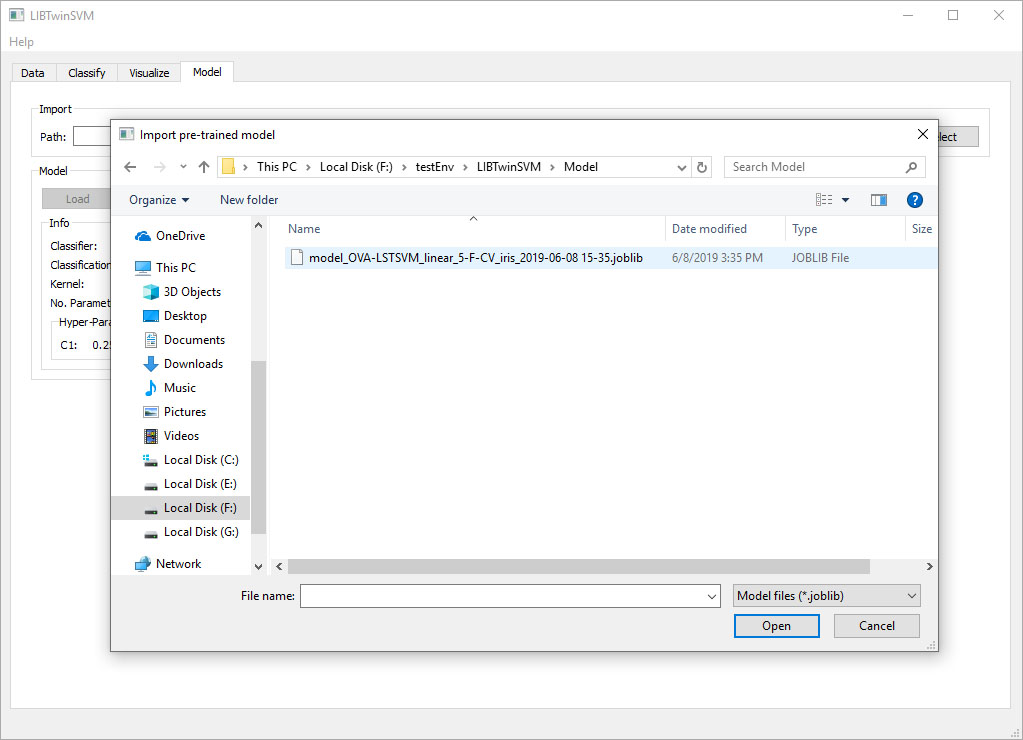
- After setting the pre-trained model’s path, click on the Load button to load the model and display the model’s characteristics such as its classification type and the used kernel.

- In the final step, you can evaluate your model by clicking on the Evaluate model. Moreover, if you want to save the predicted label of each sample, you can check Save Predictions button.
